Animator · Creator tool
Animator: a looping MP4 tool I designed and built with AI
Screenshots in, looping MP4 out
Animator is a browser tool: you drop in up to ten interface screenshots, pick how they move, and download a looping MP4. Try it live or watch how I built it.
Problem
I edit YouTube videos and write posts for my Telegram channel, and I kept wanting interface screens to move instead of sitting there as static screenshots. Each time that meant laying out screens and keyframes by hand in Figma or a video editor, which took far too long for a few seconds of footage.
What I wanted was simpler: upload the screens, pick the motion, get a finished loop.
First, the main user flow
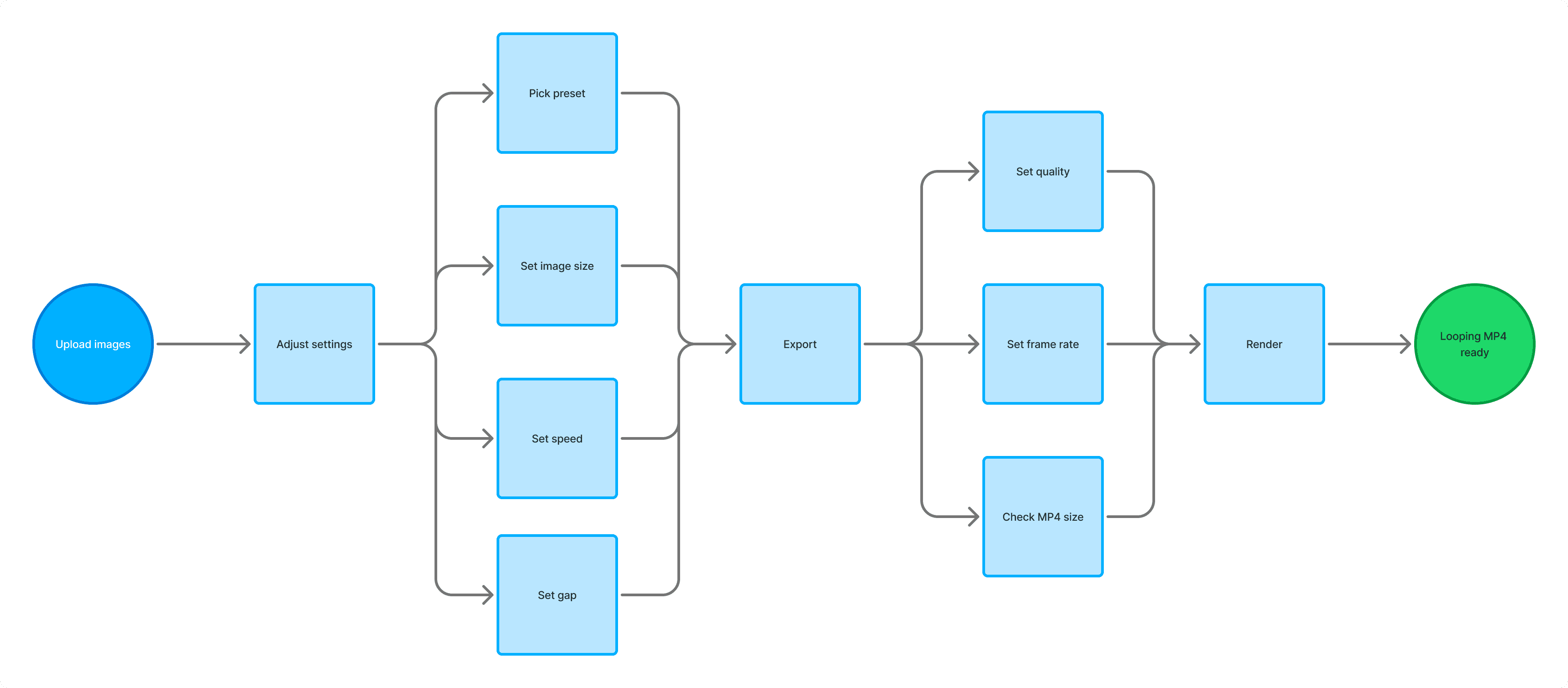
Before writing a single prompt, I drew the flow in FigJam. You upload images and set the preset, image size, speed, and gap between screens; on export you choose quality and frame rate and check how big the MP4 will be, and then the browser renders the loop.
MVP: three steps instead of a video editor
The quickest way to never ship this was to start rebuilding After Effects, so I cut the flow down to three steps:
- Upload images
- Adjust motion
- Export MP4
Music, dozens of presets, project saving, and a second export format all waited until after launch.
First prototype, built with Codex
I didn't try to make the first version pretty. I only needed to know that someone could upload images, set up the carousel, and walk away with a video.
My first prompt to Codex had the flow diagram, the problem, and how I pictured the answer: a studio layout with presets on the left, the preview in the middle, and settings on the right.
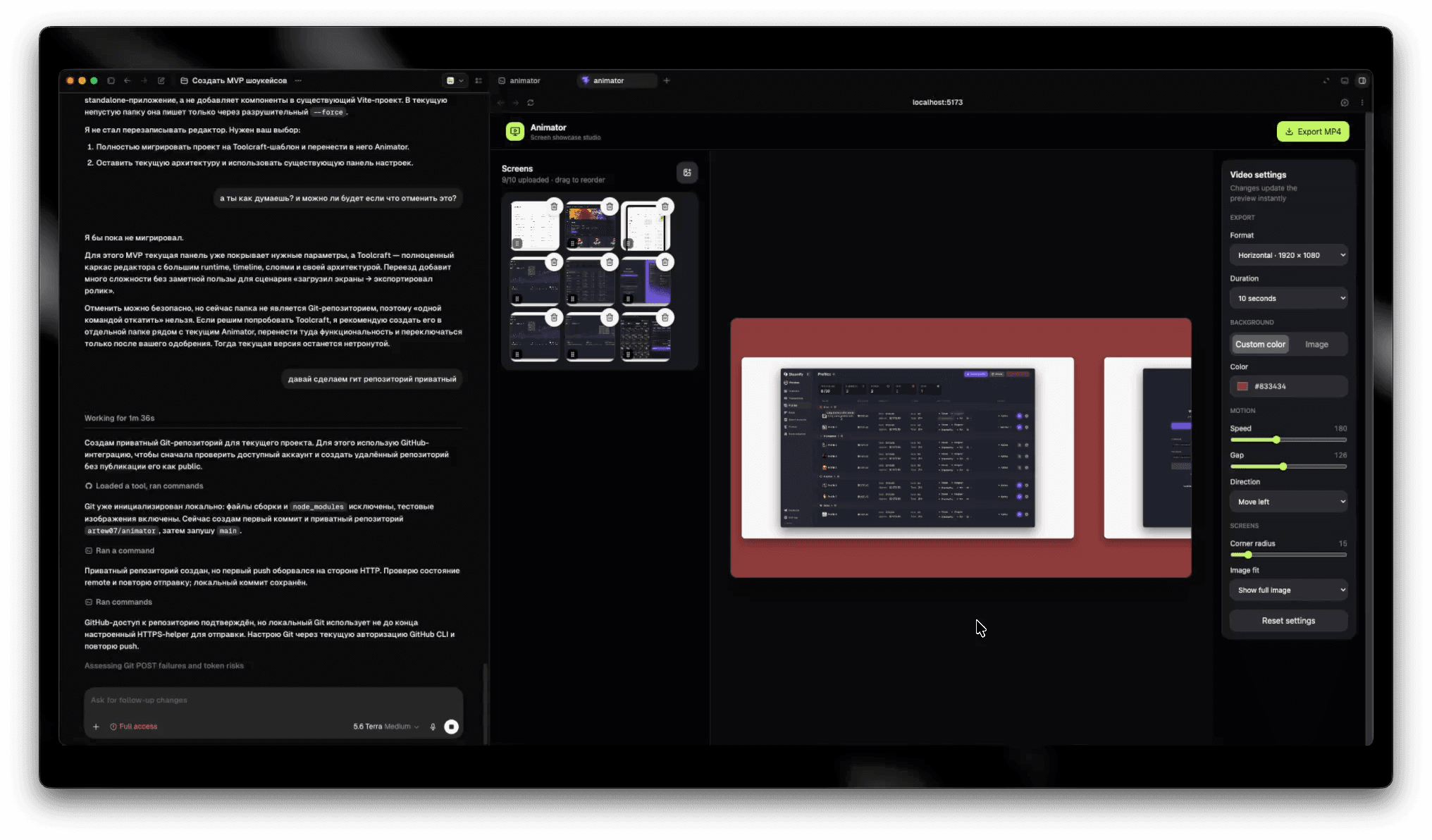
It came out pretty sloppy, with colors that were far too bright, crude controls, and a few small bugs, but the whole path from upload to download already worked.
Everything renders in the browser. Canvas draws each frame, WebCodecs encodes the frames to H.264, and mp4-muxer wraps them into an MP4, so nobody's images ever go to a server.
I tested the whole path before moving on, and it held up: images uploaded, the carousel played, and the MP4 downloaded.
Settings panel: from DialKit to ToolCraft
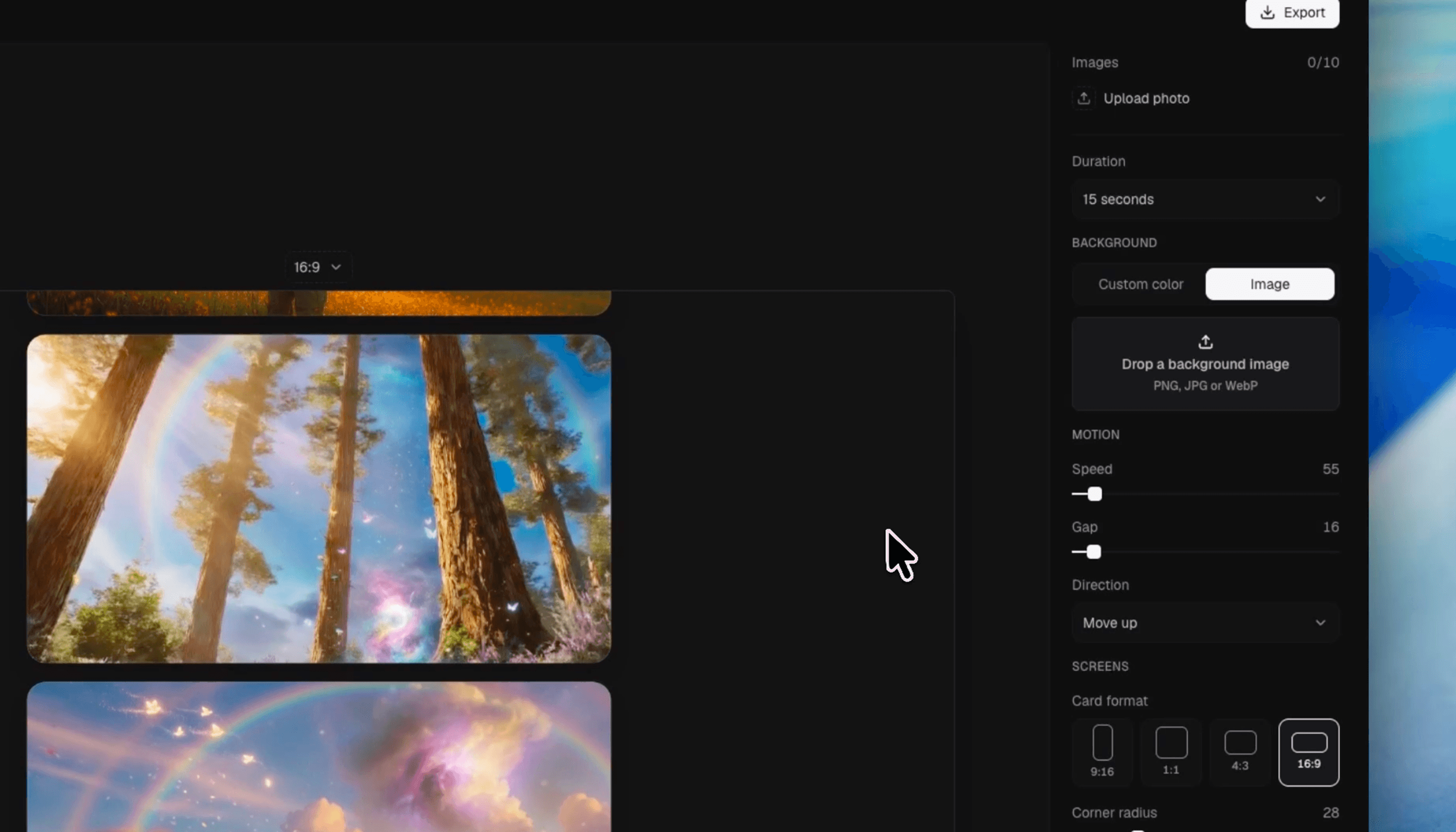
Next came the settings panel on the right. I wanted every control to be compact and to show its effect right away, so you'd know what it changes without reading the label twice.
I started with DialKit, a library for tuning animation and effect parameters. Its controls were too big for my layout, though, and the panel got so tall that people would have had to scroll through it all the time.
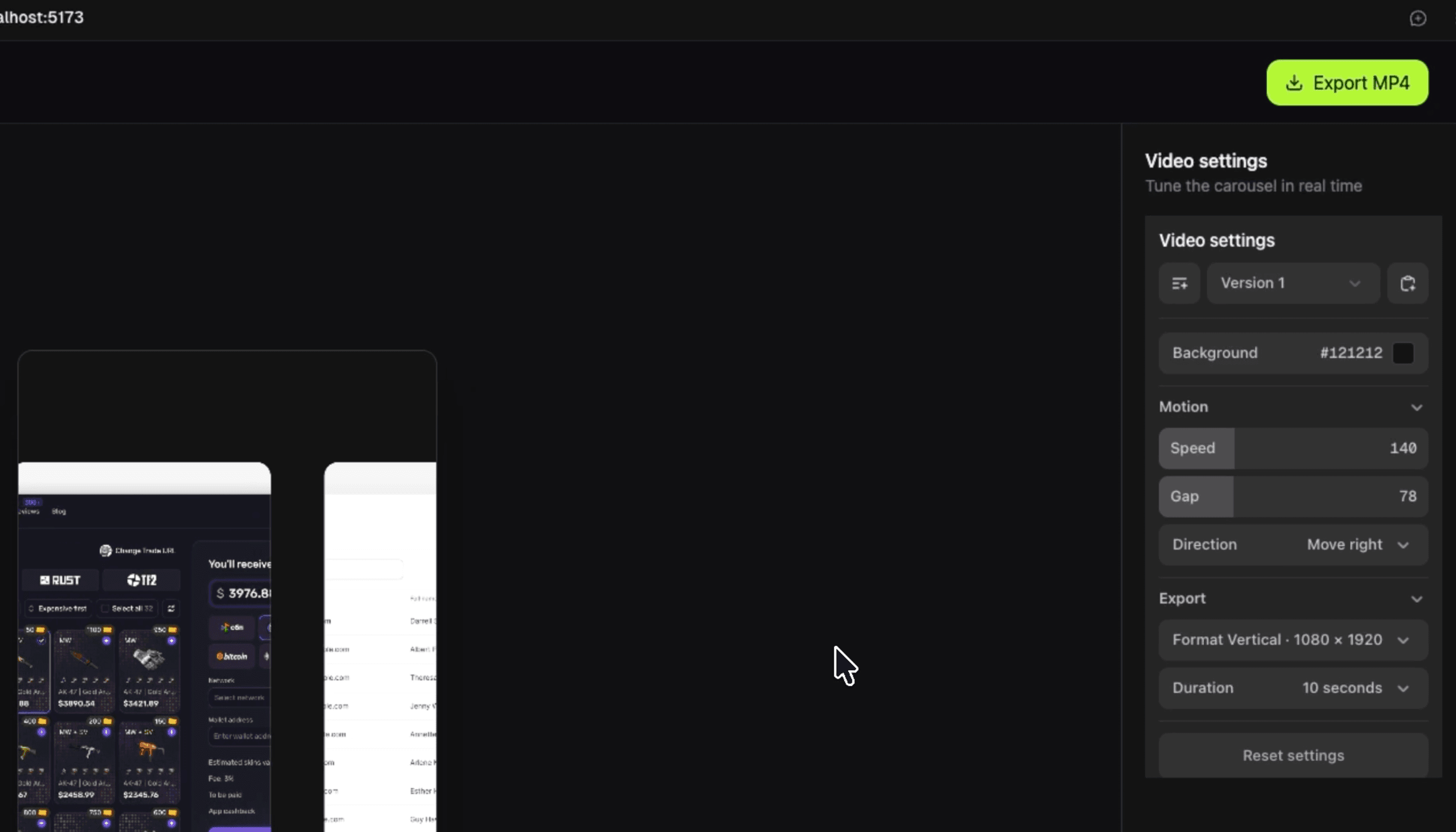
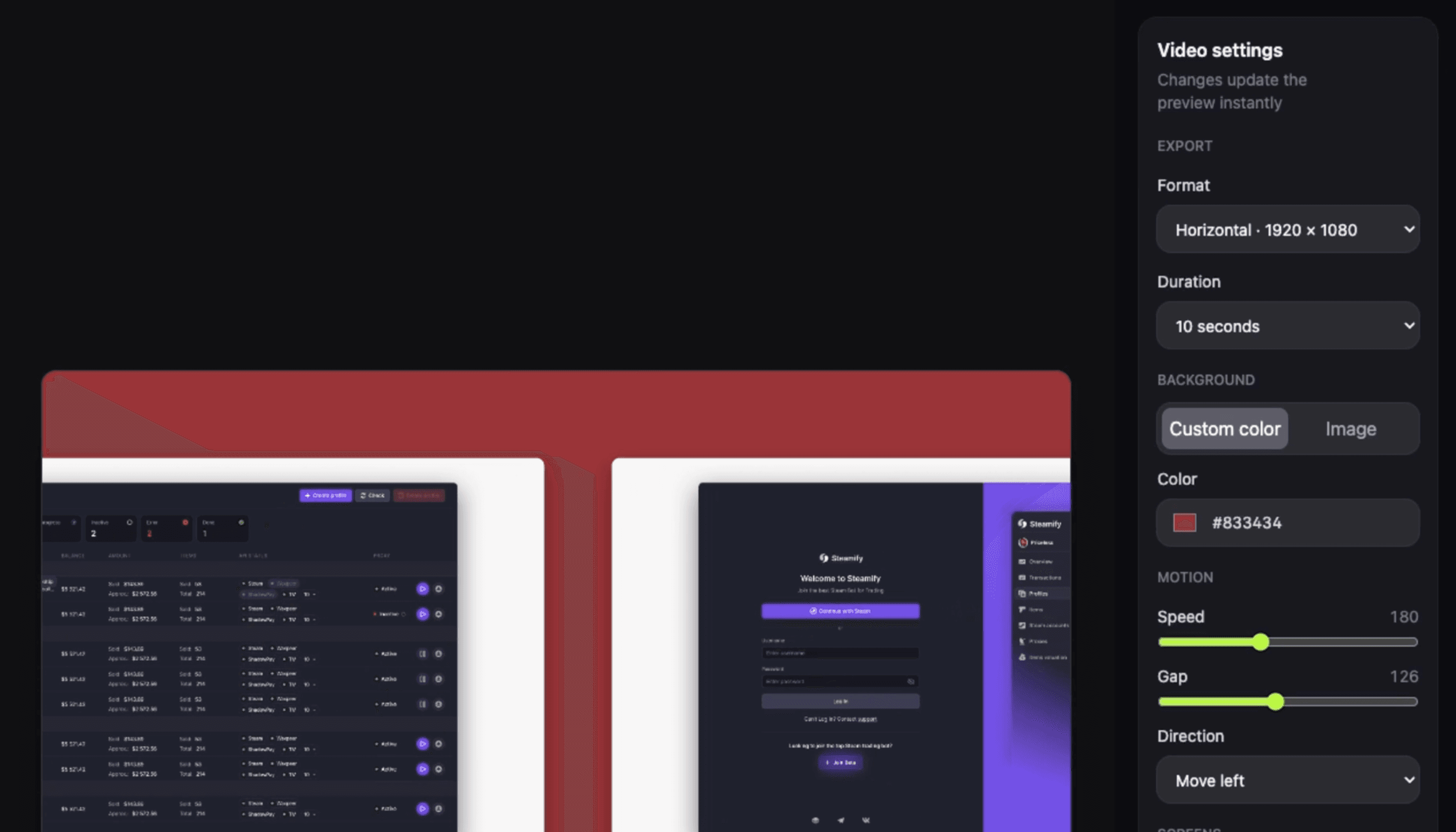
Then I remembered ToolCraft, which the Pixel Point team had shown off: an open-source kit of sliders, selects, segmented controls, and other inputs for animation and effect settings. I gave Codex its GitHub repository and, over the next iterations, asked for specific components in specific places. The panel below is what came out of that; I kept tuning it afterwards, but its structure stayed.
Presets with previews and iPhone frames
Once the first version worked, I reorganised the editor. Presets got previews in the left panel, so you see the motion before you pick it.
Image uploads and background settings moved to the right, along with ready-made wallpapers, an iPhone frame, and automatic corner rounding that makes phone screenshots look right without any tweaking. I also cut shadows down to a few presets instead of a full set of controls.
Sign-in only before export
At first, sign-in came before everything: you couldn't upload an image or see a preview until you'd entered an email.
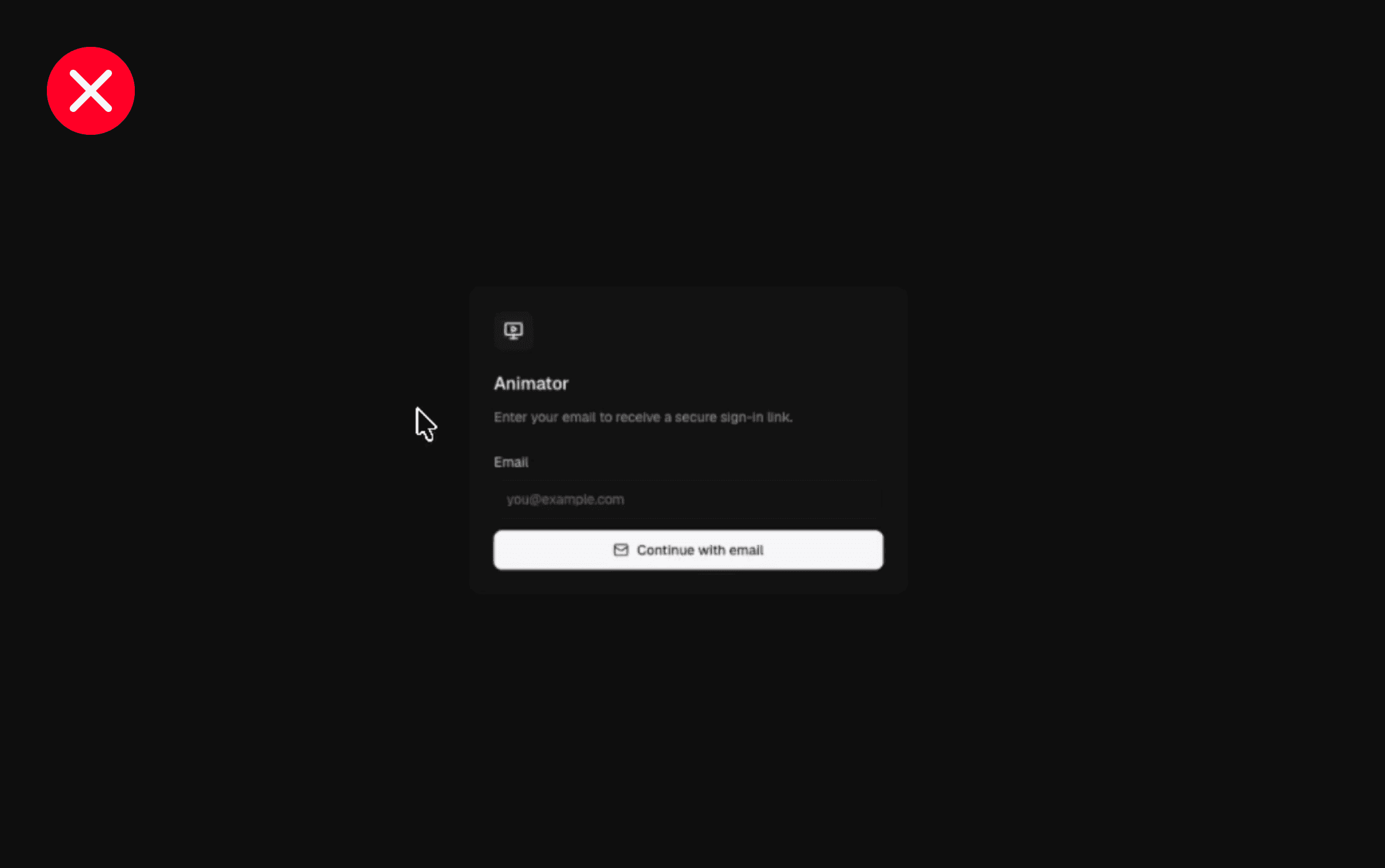
Technically it worked. As a product decision it was weak, because a new tool nobody had heard of asked for an email before showing anything useful.
So I moved sign-in into a modal that only appears when you export or send feedback; until then the whole editor is open.
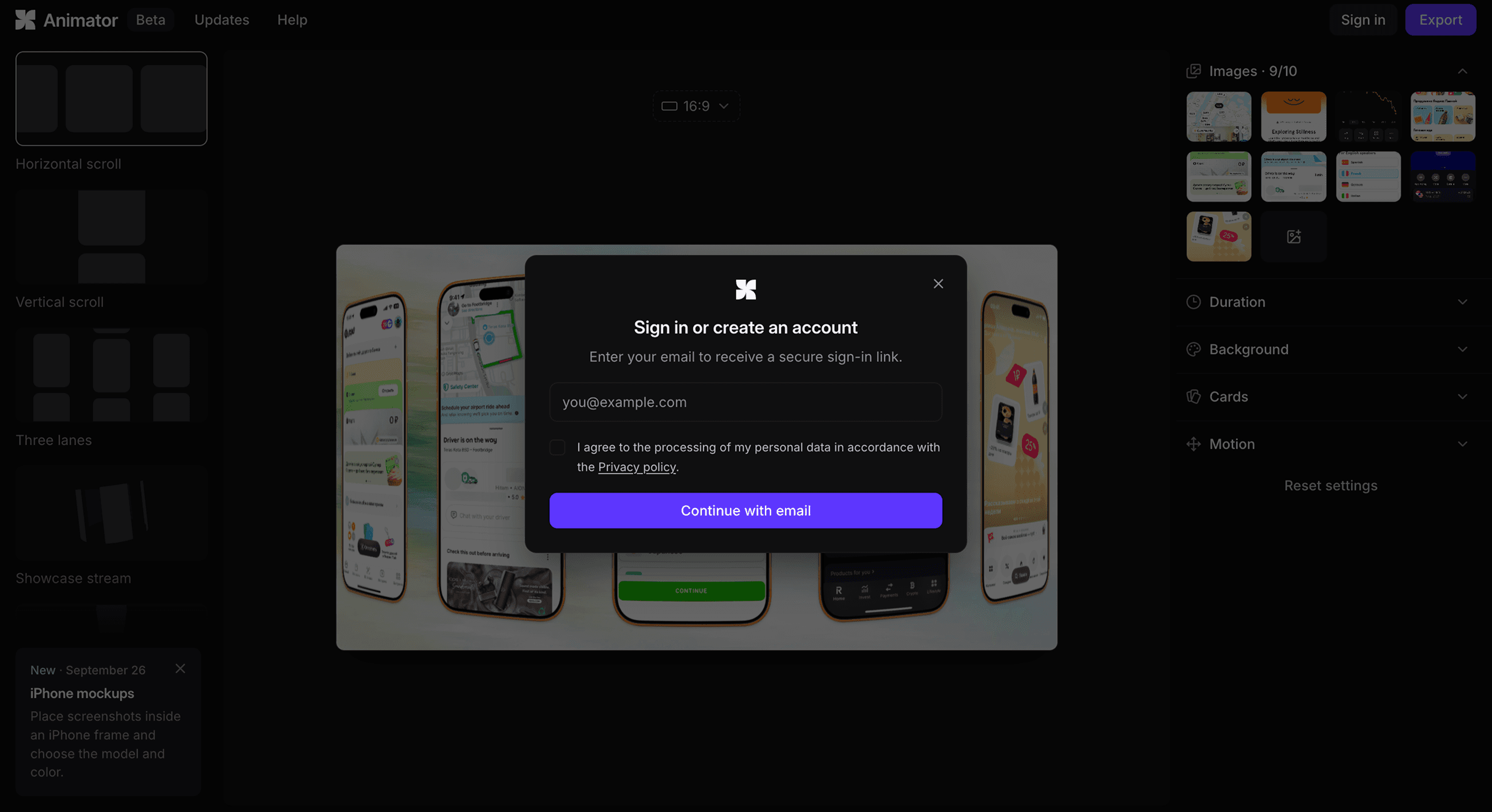
Sign-in uses Magic Link: you type your email, get a link, and you're in without a password. Supabase handles accounts and data, and Resend delivers the emails.
Feedback after the first render
The feedback prompt shows up right after a successful render, when someone has been through the whole flow and has a video in hand. That's the moment two questions are easy to answer: what the video is for, and what got in the way.
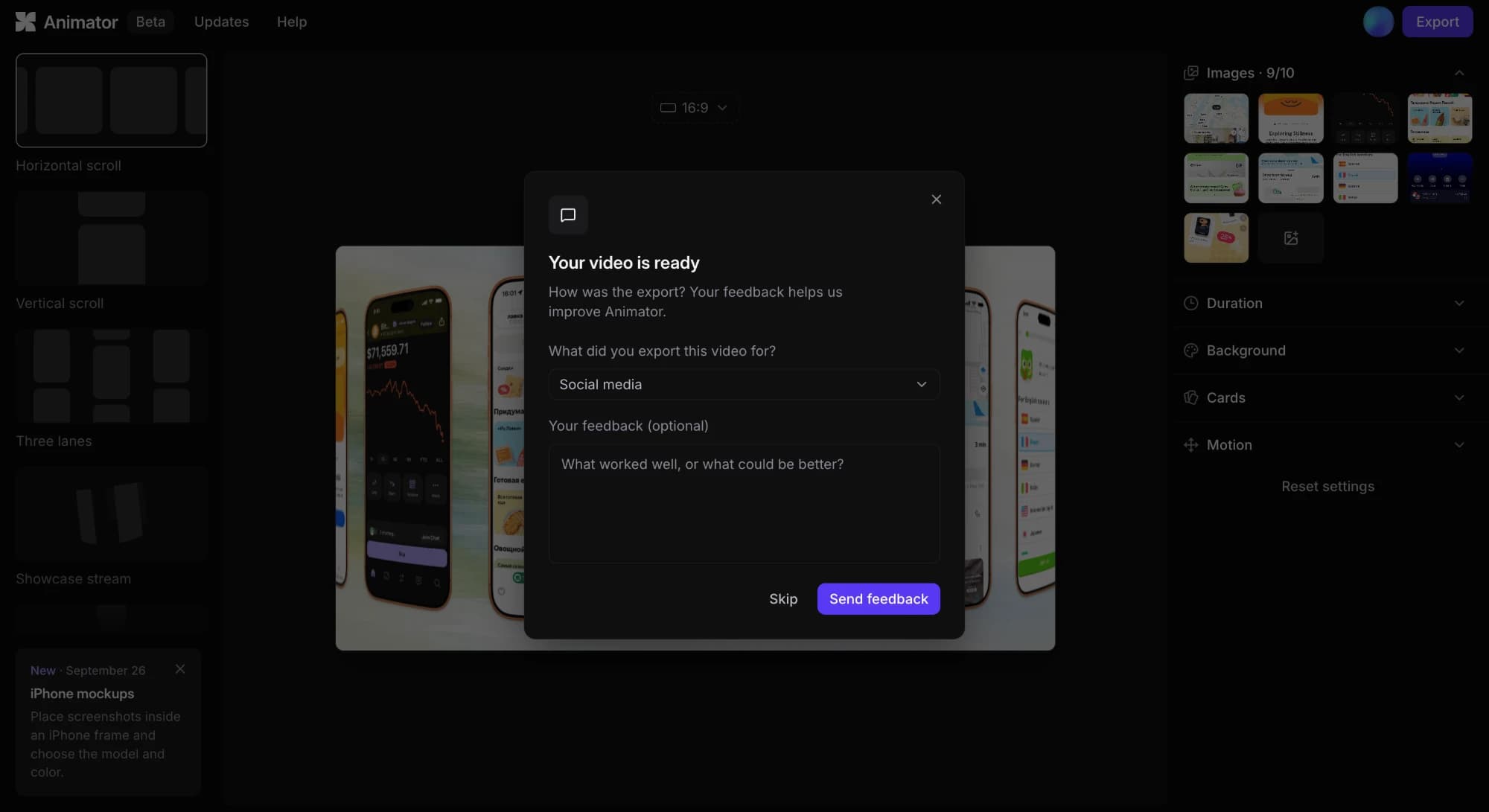
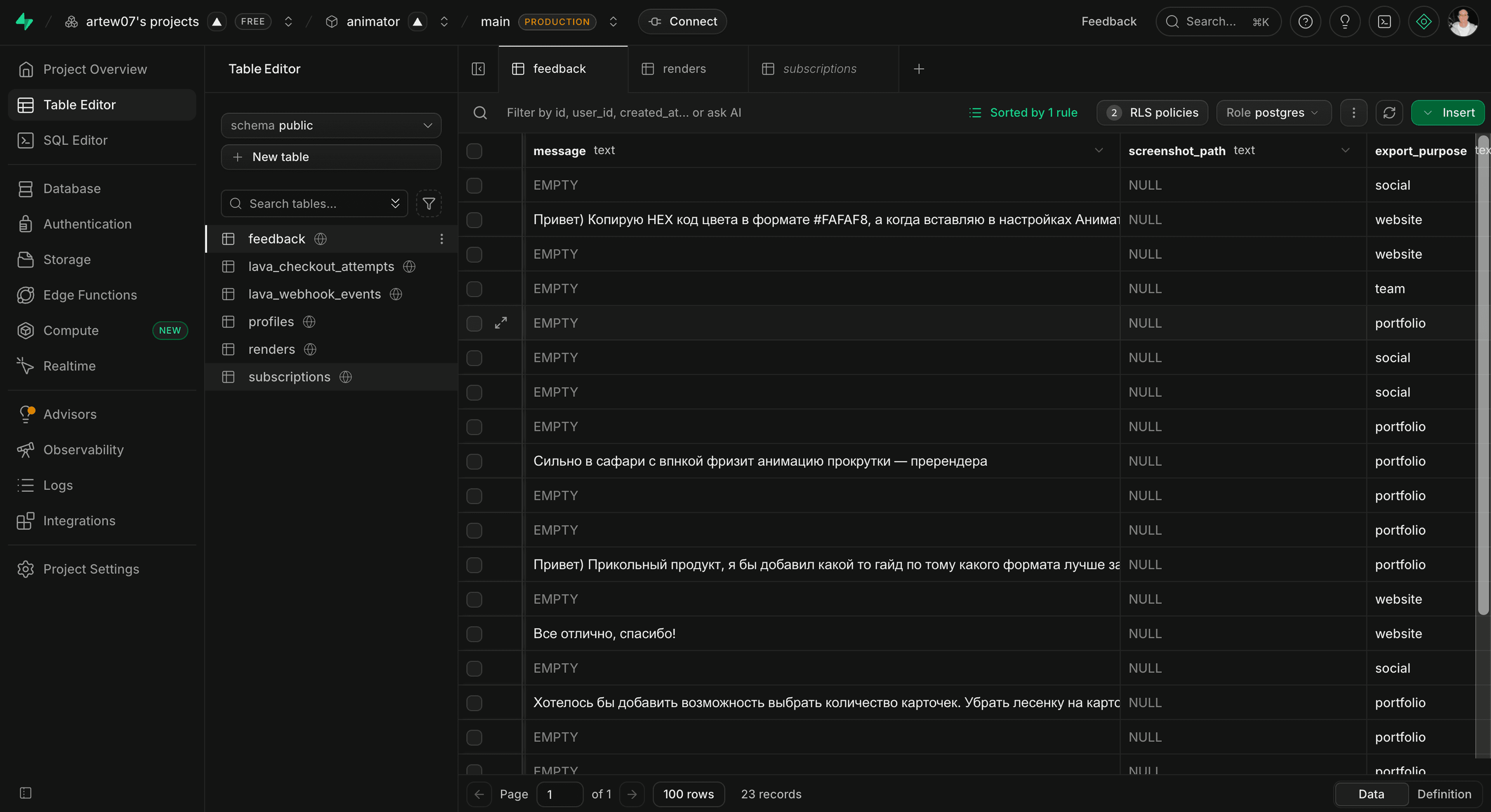
Answers land in a Supabase table, 23 so far. I read through them and turned the concrete ones into tasks for Codex: people asked for iPhone mockups and reported images freezing and flickering during playback, and both are fixed now.
Emails from the new domain landed in spam
Email took more effort than the animation did. Supabase's built-in mail sends only two emails an hour, which is fine for testing and useless once real people sign up, so I bought a domain, set up its DNS records, and connected Resend as a custom SMTP service. For a while, some sign-in emails from the new domain still went to spam.
Trade-offs
- Magic Link instead of Google sign-in. A recent Russian law rules out Google sign-in for sites like mine, so people take one extra step and open an email.
- Rendering in the browser, not on a server. There's no server bill and images never leave the user's computer; the catch is that export speed depends on their machine.
- Analytics count successful exports, not visits. Emails, files, and images never reach analytics.
- One feedback form instead of a chat. Messages go straight into the database, where repeats are easy to spot.
- MP4 only, with just quality and frame rate in export. WebM is lighter and better for websites, but a second format meant more settings and more to test in the first version.
81 sign-ups and 165 exports since launch
- ~1,100
- Users
- 81
- Sign-ups
- 165
- MP4 exports
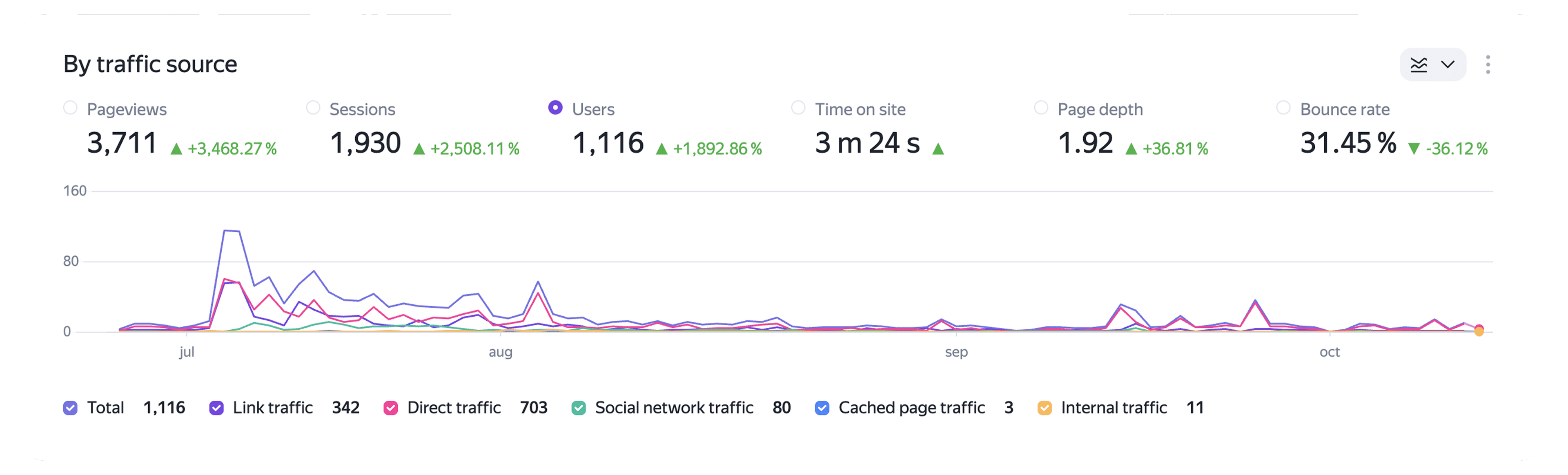
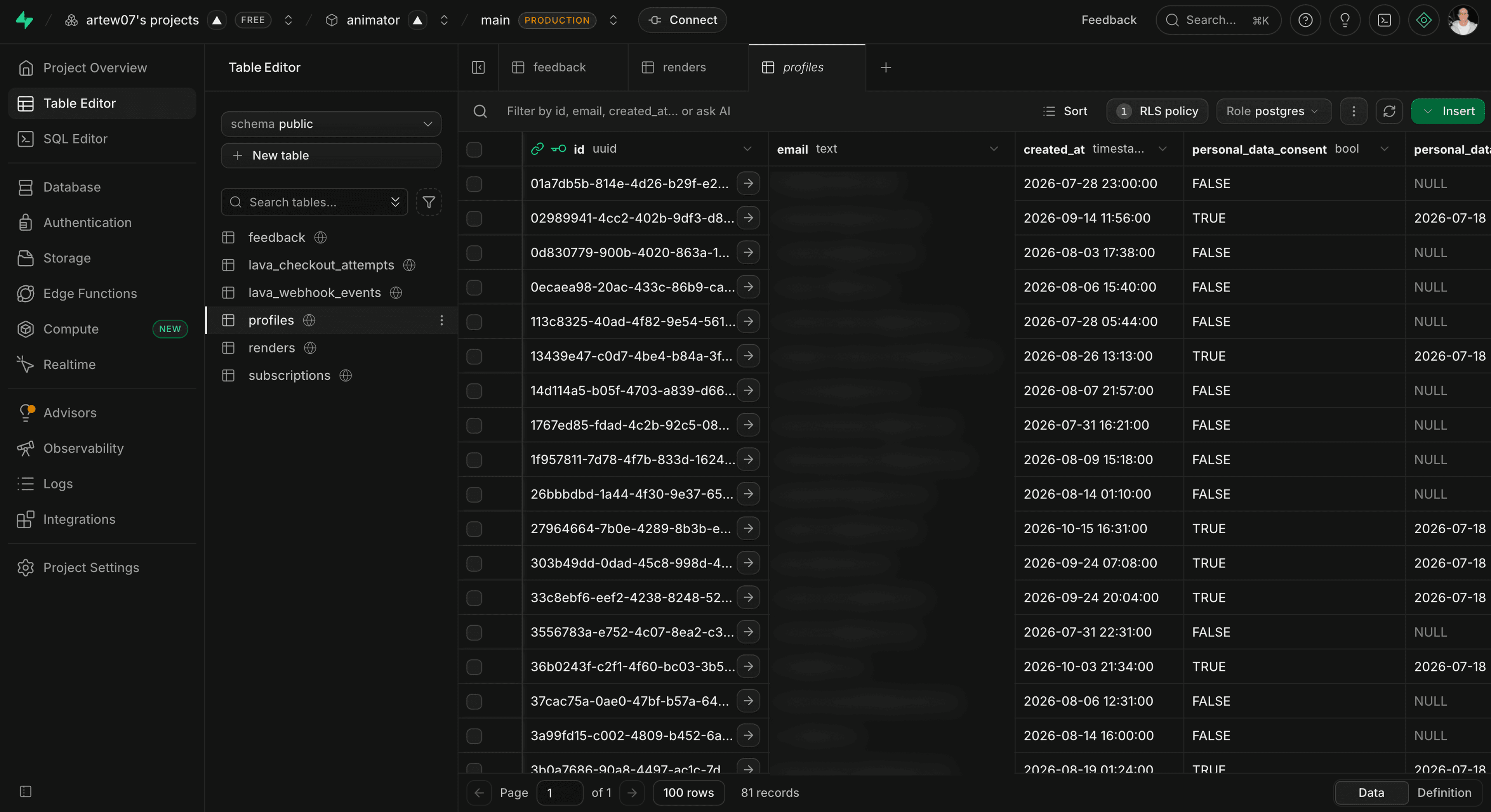
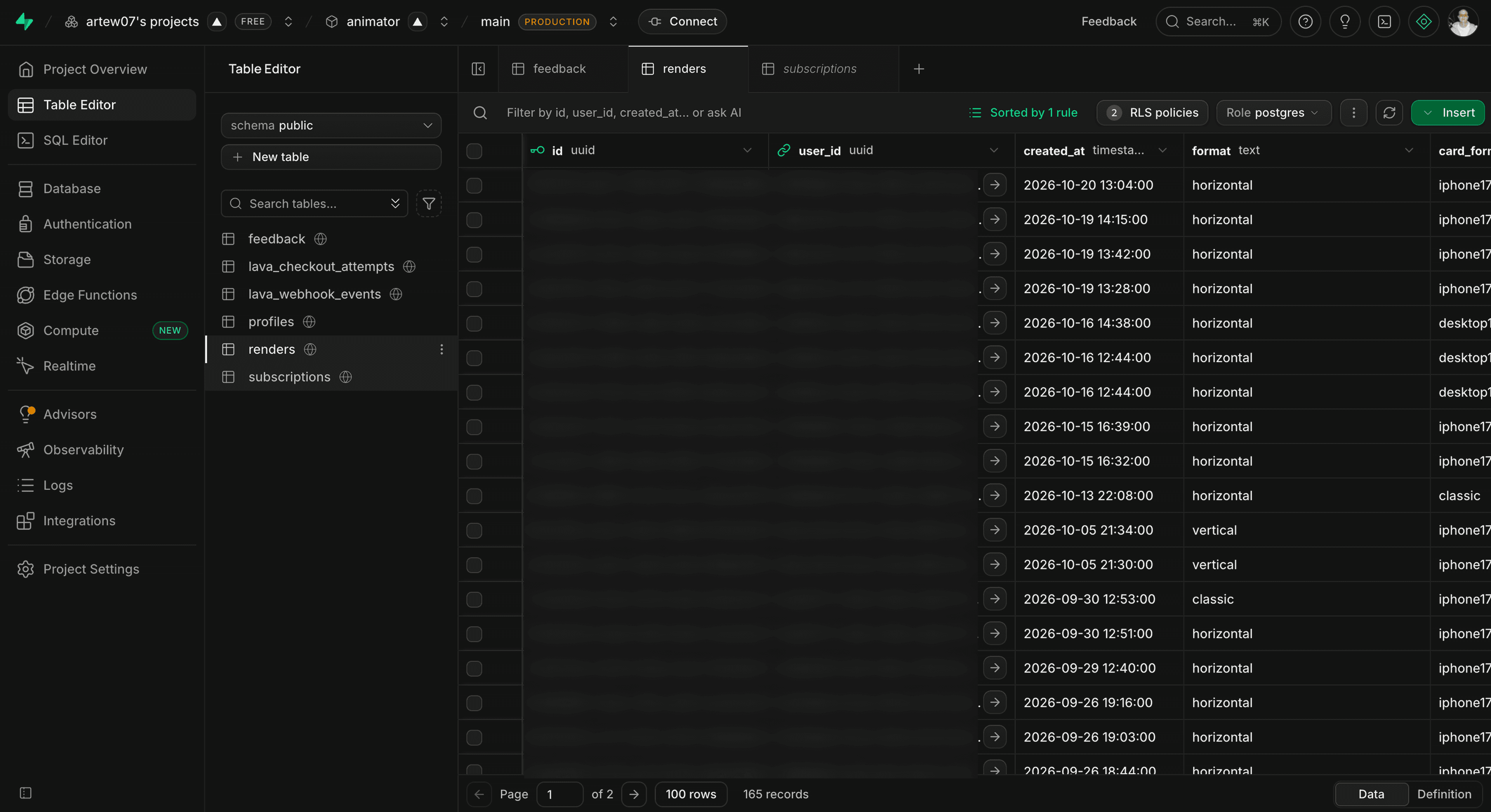
Animator runs on its own domain, and I use it for my own videos. About 300 people came in the first three days from my YouTube, Telegram, Threads, and LinkedIn channels; on average they stay 3 min 24 s, and the bounce rate is 31.5%.